
GoHighLevel Workflow Builder: The Complete 2026 Guide

Most broken automations in a GoHighLevel account have the same cause: the workflow was built by dragging in actions before anyone decided what should start it and what should stop it. The GoHighLevel workflow builder gives you plenty of room to get that wrong, which is why a little structure up front saves hours of untangling later. Well-planned GoHighLevel workflows are the backbone of any GoHighLevel automation setup.
This guide walks through how a workflow is put together, how to build one in five steps, and the three controls that do the most work: Wait, If/Else and Goal Event. Where we describe how those actions behave, we've taken it from HighLevel's own help articles.
How the GoHighLevel workflow builder works
A workflow is a chain of steps that runs for one contact at a time. It begins with a trigger, which is the event that lets a contact in, and then runs actions in order: send a message, wait, check a condition, jump ahead.
You open it from Automation, then Workflows, then Create Workflow. Nothing runs until you publish, according to HighLevel's Goal Event article, which was last modified on 8 July 2026.
Think of the GoHighLevel workflow builder as three layers. The trigger decides who enters. The Wait and If/Else actions decide timing and path. The Goal Event decides when a contact has done what you wanted and no longer needs the rest of the sequence.
Build your first workflow in five steps
A reliable build follows the same order every time, and it's the order most people skip. Work through these before you add a single message.
- Write down the outcome in one sentence, such as a booked appointment or a paid invoice.
- Pick from the workflow triggers the one that marks the moment a contact should enter, and decide who must never enter.
- Add the first action, then a Wait step so the contact isn't hit with everything at once.
- Add an If/Else wherever the next step depends on something you can check about the contact.
- Add a Goal Event for the outcome from step one, then test with a dummy contact and publish.
Step five matters most for lead follow-up, and it's the one the GoHighLevel workflow builder won't force on you. Without a goal, someone who books on Monday can still get Tuesday's reminder to book.
Using the If/Else workflow action to branch
The If/Else action splits a workflow into branches based on data held on the contact. You add it with the plus icon, choose Build My Own or a prebuilt recipe, then pick a field, an operator and a value for each branch.
Need more than one condition? Add a segment and join conditions with AND or OR. For a third path, add another branch.
Every If/Else also gets a None branch automatically. It catches any contact who matches nothing else, it can't hold conditions and it can't be deleted. Put a fallback there, even if the fallback is just a tag for someone to review, because a contact falling into an empty None branch is the classic way a lead goes quiet.
Two details from HighLevel's If/Else article save real debugging time. Dropdown fields compared with dynamic values need option IDs rather than the names you see on screen, and if you want a condition checked at a specific moment, put a Wait step in front of it.
Wait step options that control timing
In the GoHighLevel workflow builder, the Wait action pauses a contact until something happens, and it does far more than count down hours. HighLevel's Wait article, last modified on 14 November 2026, lists these ways to wait.
| Wait for | What it does | Good for |
|---|---|---|
| A set period | Seconds, minutes, hours or days, with an optional window of weekdays or hours | Spacing follow-up messages |
| A date and time | On, before or after a date, with a choice of what happens if it has passed | Event reminders |
| An appointment or invoice due date | At, before or after the event | Reminders and payment nudges |
| The contact to reply | Waits for a reply, with an optional timeout | Conversations that adapt |
| Specific conditions | Ends when any one segment of conditions is true | Waiting for a tag or field |
One catch: editing a Wait step doesn't change the wait for contacts already sitting in it. And waiting for a reply only works if a Send Email or SMS action comes before it.
Workflow Goal Event: stop sending what's no longer needed
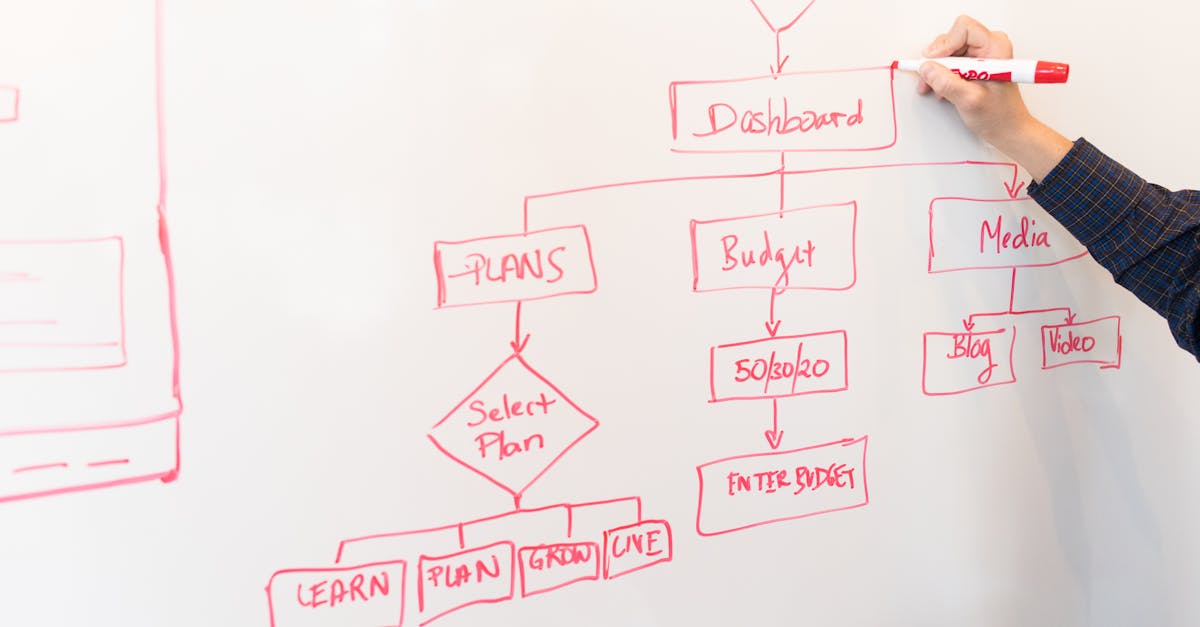
Photo by Christina Morillo on Pexels
A Goal Event moves a contact straight to the goal step the moment they meet your goal, wherever they are in the workflow. That can skip the steps in between or end the workflow outright.
Goals can be a submitted form, a payment, a paid invoice, a document status, an email event, a clicked trigger link, a tag added or removed, an appointment status or a reply. You can set what happens when a contact reaches the goal step without meeting it: end the workflow, continue anyway, or wait until the goal is met.
The limits are worth knowing before you design around it. A workflow takes one Goal Event action, several selected forms or products work as OR, and a contact can meet the same goal only once per workflow. Monitoring is continuous, so goals fire outside business hours too.
If your sequences chase people who have already booked, the Goal Event is the fix. Our guide to moving deals between pipeline stages automatically shows the same idea applied to opportunities.
Mistakes that break a GoHighLevel workflow builder setup
The costly mistakes in GoHighLevel workflows are quiet ones. A workflow that fails loudly gets fixed the same day, while one that silently stops sending can run for weeks.
Our team's audit work on broken automations usually comes down to following the logic of a workflow that is silently failing, finding the condition that never evaluates to true, fixing it and documenting what changed. You can do a version of that yourself by checking each If/Else for a condition no contact can ever meet, and each branch for a dead end.
Tags deserve the same care, because many conditions hang off them. A messy tag list produces messy branches, so keep the naming tidy, as covered in our guide to GoHighLevel tag management.
Before you publish, test with a dummy contact down every branch, including None. It takes ten minutes and catches most of what would otherwise go wrong in front of a real lead.
Building it yourself or handing it over
Learning the GoHighLevel workflow builder by building a handful of workflows is a reasonable first project, and HighLevel runs a 30 day trial of its HighLevel Bootcamp if you want guided practice in the platform.
The picture changes when you're managing many sub-accounts or your week disappears into fixing automations. At GHL Prime we've built and configured 100+ GHL accounts, and our automation service covers workflows for speed-to-lead, appointment reminders, no-show follow-up and review requests, along with the wider GoHighLevel setup they sit inside.
On price, fixed-scope projects start from $147, and hiring a certified GoHighLevel expert costs $10 to $20 an hour. A full-time dedicated expert with a project manager starts from $997 a month. There's no setup fee, and the minimum is one month. Full details are on our pricing page, and if you only need one person for a project you can hire a single specialist.
Frequently asked questions
Can a workflow have more than one Goal Event?
No. HighLevel's help article says each workflow takes one Goal Event action, though that one action can hold several criteria.
What happens to contacts already waiting if I edit a Wait step?
Nothing changes for them. Contacts already inside the step keep the original wait, and only new contacts get the edited one.
What is the None branch in If/Else?
It's the branch that runs when none of your conditions match. It's created automatically, can't be removed, and can be renamed and given fallback actions.
Can I wait for a customer to reply before the next step?
Yes, with the Wait action set to wait for the contact to reply, with an optional timeout. It needs a Send Email or SMS action earlier in the workflow.
Sources
- Workflow Action - Goal Event — HighLevel Support Portal
- Workflow Action - Wait — HighLevel Support Portal
- Using If/Else Workflow Action to Automate Decision-Making — HighLevel Support Portal
Cover photo by RDNE Stock project on Pexels
Need help implementing this in GoHighLevel?
Our team builds, automates, and scales GoHighLevel systems for agencies every day. Book a free call and we'll map out exactly what to ship next.
Book a free call